How to Translate a Screenshot to English
Turn a screenshot in any language into readable English without retyping anything. Paste, translate in place, check the details, and export the image.
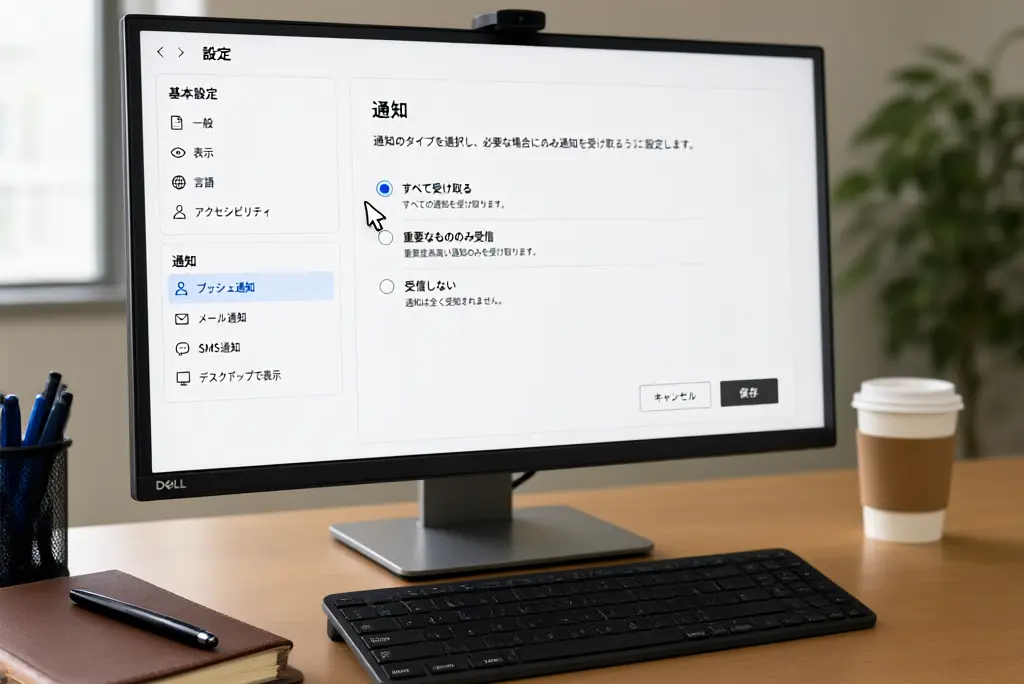
You can translate a screenshot to English in under a minute without retyping a word: copy the screenshot, paste it into an image translation workspace, keep English as the target, and download the result with the translated text placed exactly where the original sat — same window, same buttons, same message layout, readable in English.
That position-preserving output is what makes screenshot translation different from just looking up a word: you get back an English version of the picture itself, which you can keep for reference, paste into a bug report, forward to a colleague, or add to documentation. This guide covers the whole workflow, the privacy check to run first, and the situations where a translated screenshot beats every alternative.
What people actually translate from screenshots
Five situations cover most screenshot-translation needs:
- Software interfaces. A settings page, installer dialog, or admin panel that shipped in one language and now needs to be understood in another — common with Japanese, Chinese, and Korean tools that never got an English localization.
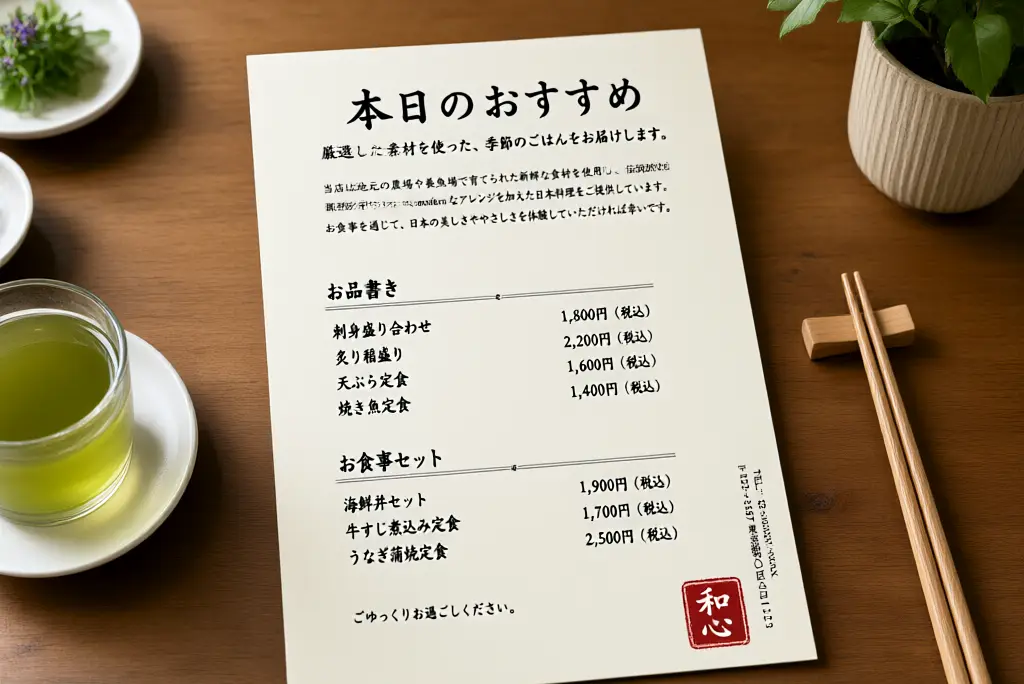
- Chat and messaging history. A conversation in a foreign app whose meaning matters: a purchase confirmation, an address exchange, a customer support thread.
- Error messages and prompts. A dialog blocking your work, in a language you cannot read. You need the exact wording — buttons included — not a summary, because the wrong button makes things worse.
- Receipts, invoices, and confirmations. Order numbers, amounts, and dates embedded in an app's output, where every digit must survive translation unchanged.
- Study material. A textbook page, an exercise, or an infographic screenshotted for later — translated in place so the layout of the lesson survives.
What these share: the position of every label matters. A translated paragraph floating next to the screenshot does not tell you which button says "cancel" and which says "delete".
Step-by-step: screenshot to English
1. Capture the screenshot at full size
Take the screenshot at the device's native resolution — do not scale it down first. Recognition quality depends heavily on pixel-level clarity of the lettering. Avoid re-compressing the screenshot through messaging apps before translating: the artifacts they add blur small text. JPG, PNG, and WebP are all accepted; PNG is what most screenshot tools produce and is ideal.
2. Crop to what matters
Trim the capture to the window, panel, or conversation you actually need. A tight crop does three things at once: it raises recognition accuracy (fewer competing regions), makes the result easier to read, and removes parts of the screen you may not want to share.
3. Do the privacy pass
Screenshots leak more than people expect. Before uploading anywhere, crop or cover:
- Account names, email addresses, and profile photos — yours and other people's.
- Order numbers, tracking codes, and payment identifiers.
- Addresses and phone numbers, especially in chat screenshots.
- Passwords, PIN pads, and 2FA codes — obvious, but they appear in support screenshots surprisingly often.
In an image translator, the picture is sent to a processing service to be translated, so treat whatever you upload the way you would treat anything you send to a third party: keep it to what the task needs.
4. Paste and translate
Open the translation workspace and paste the screenshot straight from the clipboard — no need to save a file first (selecting a saved file works too). English is the default target language. Check the credit estimate shown after the image loads: a standard-quality translation costs 10 credits per image per target language, and high quality costs 20. Submit, and the translated screenshot appears alongside the original.
5. Check buttons, numbers, and menu items
Interface screenshots have three high-risk zones — check them in this order:
- Buttons and actions. Confirm the translated labels still match the right controls. "Continue", "Cancel", and "Delete" sitting on the wrong buttons is the costliest mistake in this category.
- Numbers. Amounts, order numbers, dates, and time stamps must match the original exactly — translation never changes digits, but recognition can misread them, so verify.
- Menus and lists. Every row should have its own translated label; a dropped row in a settings list is easy to miss and easy to fix with one more pass over the original.
6. Edit if needed and export
If a label reads awkwardly or overflows its button, open the result editor and adjust that region's wording — a shorter synonym usually fits better than the first translation. Download the result as a PNG and you have an English screenshot with the original layout intact.
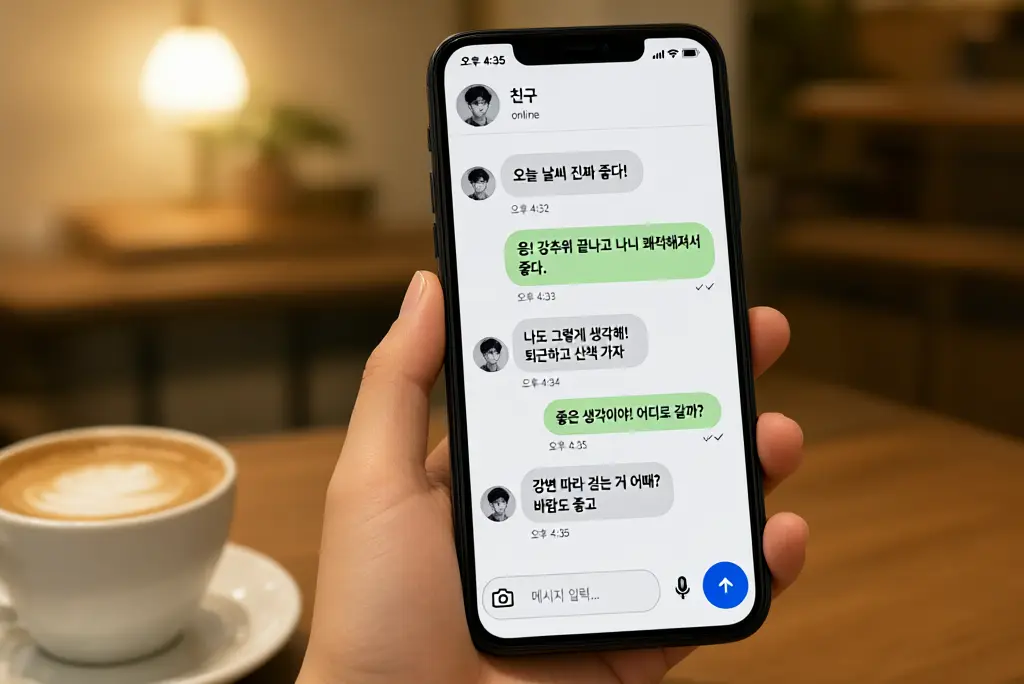
Translated screenshot vs. pointing a camera translator at the screen
Camera translators and lens-style tools are great for one thing: reading foreign text on the spot. A translated screenshot serves a different purpose:
- You need a shareable artifact — a bug report, a support ticket, a documentation page.
- You need precision and a record — the exact error message, retained for later comparison.
- The source is already a digital image — translating it as an image avoids a lossy camera-in-front-of-screen round trip.
- You want the result editable, region by region, before export.
If the goal is just "what does this say right now?", a point-and-read tool is fine. If the goal is "I need this in English, correct, and keepable" — that is the screenshot-translation workflow above.
Frequently asked questions
Does the translated screenshot keep the original interface design? Yes. The translated text is placed back into the same regions of the capture — window frames, buttons, and chat bubbles stay where they were, with the wording swapped to English. Fonts and spacing can differ slightly from the original interface, which is why the final check compares labels against the original.
What about long scrolling screenshots? Long captures work best when you split them into screen-sized sections first — recognition on very tall images is uneven, and the review pass is easier when each section matches what you actually saw. Translate each section with the same target language and keep the files named in order.
Will usernames and emoji be translated? Emoji, icons, and interface graphics pass through untouched. Names are usually preserved as-is; if a name is picked up as text and altered, one edit in the result editor restores it.
Keep going
- Open the workspace and paste your screenshot — samples are one click away.
- Caring about the design staying intact? The full method is in how to translate text in an image without changing the layout.
- A whole folder of captures? Read how to translate multiple images at once.
- Credit costs and plan limits live on the pricing page.