How to Translate Multiple Images at Once
Batch-translate a folder of product photos, manga pages, or screenshots in one job and download the set as a ZIP. Preparation, credit math, and a QA sampling plan.
You can translate multiple images at once: upload them together in one batch job, pick a single target language for the whole set, and download the finished translations as a ZIP archive — no per-image clicking, no renaming files by hand. On Translate Image the free tier accepts up to 3 images per job with one target language, and paid plans scale the same workflow to 100 images and up to 10 target languages per image.
Batch translation is how image localization stops being a chore. One product listing is a task; forty listings for a storefront, a chapter of manga pages, or a folder of support screenshots is a pipeline — and pipelines live or die on preparation and sampling. This guide covers both.
Who actually needs batch image translation
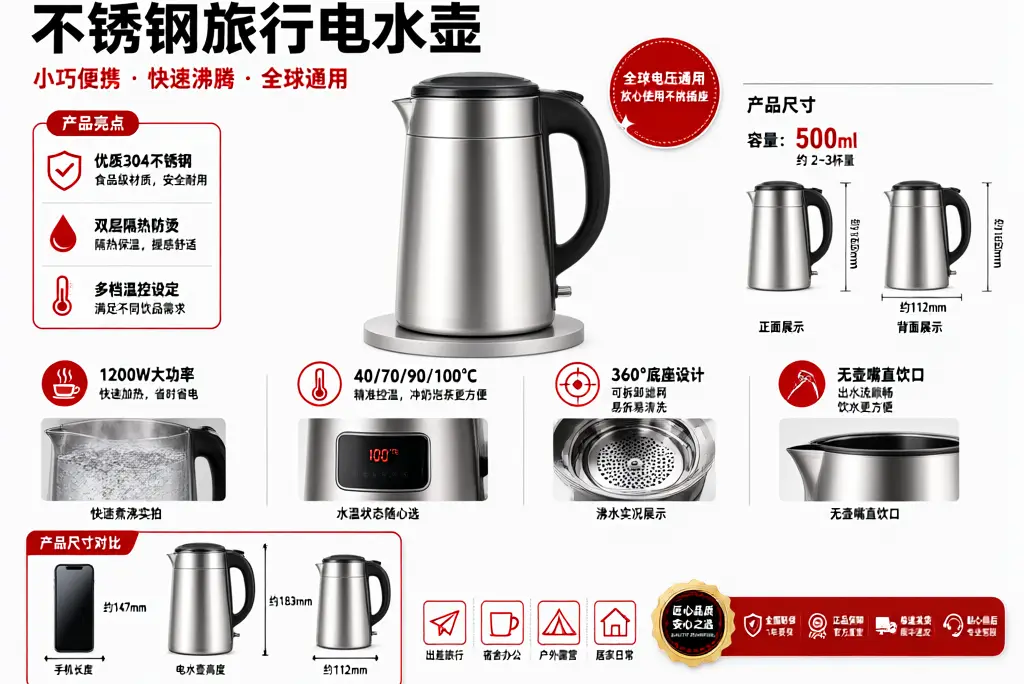
- Cross-border sellers localizing a supplier's product images into the language of their storefront — often dozens of images per listing set (main photos, infographics, size charts, detail banners).
- Manga and comic readers translating a full chapter or volume, where pages arrive as a numbered image set.
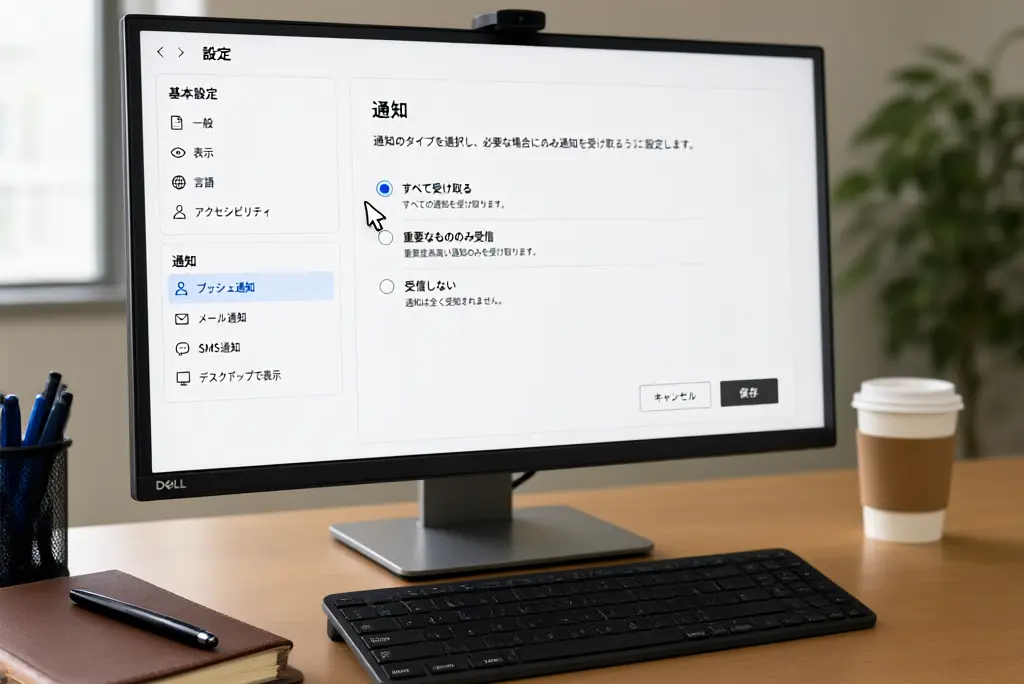
- Support and operations teams processing foreign-language screenshots, tickets, and receipts in bursts after an incident or a campaign.
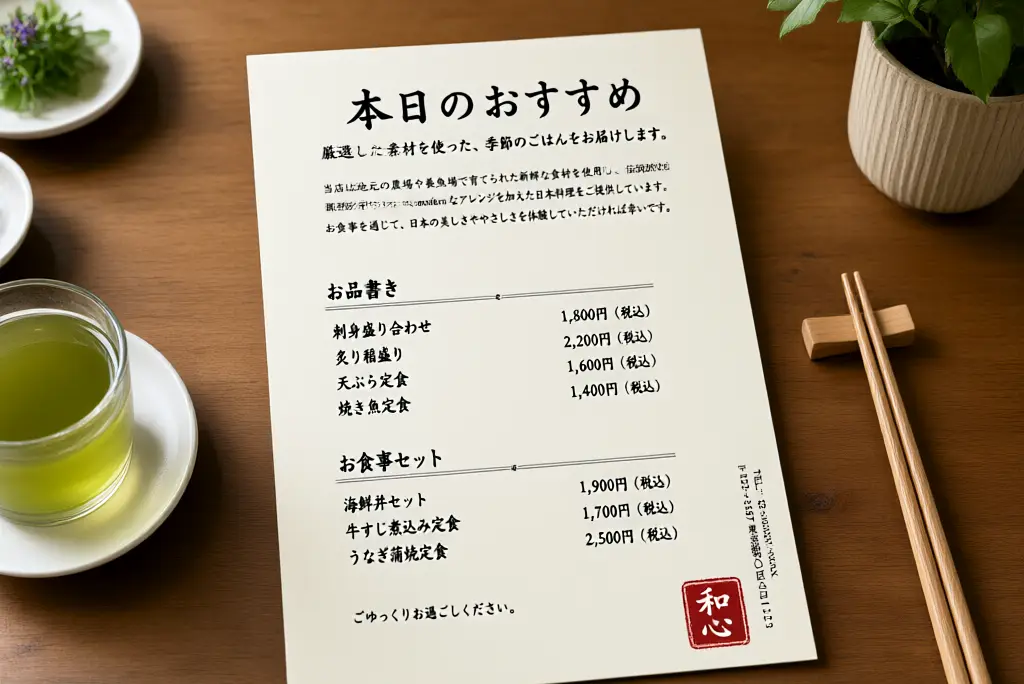
- Teachers, researchers, and travelers converting a collected folder of handouts, menus, and signage photos into one language.
The common thread: the images share a target language, roughly share a style, and only make sense delivered as a set. That is exactly what a batch job is for.
Before you upload: the 10-minute preparation that saves hours
Batch quality is decided before the first upload. Run through this list once per folder:
- Remove what should not be translated. Crop out watermarks, customer-service QR codes, promotional stickers, and anything private. OCR reads them, translation renders them, and then you get to fix forty images instead of cropping one folder.
- Normalize the set. Same orientation (no sideways photos mixed with upright ones), reasonable and consistent resolution. A single blurry image drags the QA pass for the whole batch because you cannot trust its neighbors either.
- Name files in final order.
01-cover,02-panel… orSKU1234-main,SKU1234-chart. The ZIP you download keeps the names; future-you will thank present-you. - Pick the one target language for the batch. One language per job keeps costs predictable and the QA fast. Multiple languages per image are available on eligible plans when a set truly needs them.
- Split oversized folders. Plan tiers cap images per job (3 on the free tier, up to 100 on the top plan). A 400-image catalog becomes 4–5 jobs — split it by category so each ZIP maps to a logical set.
Step-by-step: translate a batch and export a ZIP
1. Open the workspace in batch mode
Open the translation workspace and switch the uploader to accept multiple images. Drag the whole prepared folder in, or select the files at once — JPG, PNG, and WebP all mix freely in one job.
2. Confirm the target language and the estimate
Set the target language for the batch (English is the default). The workspace shows the credit estimate before you submit. The math is simple: 10 credits per image per target language at standard quality, 20 at high quality. Fifty images into one language at standard quality is 500 credits; the same fifty into two languages is 1,000. Seeing that number before submitting is the difference between a planned batch and a surprise.
3. Submit and let the set process
Each image runs through the same pipeline as a single translation: OCR finds the text regions, the AI model translates them, and the translated wording is rebuilt into each image at its original position. You do not need to babysit the job.
4. Run the sampling QA — do not check all of them, check the right ones
Checking every image defeats the point of batching. Instead, sample:
- The 3 hardest images, fully. The densest infographic, the smallest print, the busiest background — if these three pass, the easy ones will.
- Every image that contains numbers, fully. Prices, sizes, model codes, dates. Numeric errors are the ones that cost money and they hide in otherwise perfect-looking images.
- One random image in ten, quickly. A fast scan for dropped regions, overflow, or wrong reading order catches systemic problems early.
Anything that fails goes back as a single re-submitted image after you fix the source (usually a better crop or a cleaner scan) — not the whole batch.
5. Download the ZIP and archive it
Export the finished set as a ZIP. Keep three things in your archive: the ZIP, the original folder (never overwrite your sources — they are the reference for every future check and every re-run), and a one-line note of target language and date. When a supplier sends a v2 of the artwork next month, you will know exactly what ran before.
Credit planning by team size
A rough monthly picture, at standard quality (10 credits per image per language), for a workload of one language per image:
| Workflow | Images per month | Credits per month | | --- | --- | --- | | Light personal use (menus, signs, notes) | ~30 | ~300 | | One storefront refresh | ~120 | ~1,200 | | Weekly manga chapters (20 pages each) | ~80 | ~800 | | Small catalog localization | ~400 | ~4,000 |
Daily free credits (10 per day after your first 24 hours) comfortably cover the light-use row; sustained catalogs and chapter runs are what paid plans and their higher batch caps are for. Current plan limits are listed on the pricing page.
Frequently asked questions
Can different images in one batch go to different languages? A batch runs with the target languages you select for the job — every image in the job gets those languages. To split languages across images, split them into one job per language; the ZIP-per-job structure keeps the results organized either way.
What happens if one image in the batch fails? A failed image does not sink the batch. The rest of the set completes and exports; re-run the failed one alone after improving the source (tighter crop, sharper original, less glare). Credits reserved for a failed result are released.
Is batch translation cheaper per image than single runs? The credit rate is the same — the savings are in your time: one upload, one estimate, one QA pass, one ZIP. The workflow is the product.
Keep going
- Start a batch now — the uploader takes a whole folder in one drop.
- New to layout-preserving translation? Start with how to translate text in an image without changing the layout.
- Batch-localizing listings from a Chinese supplier? The specifics are in how to translate Chinese product images to English.
- Batch sizes and target-language caps per plan: pricing.